
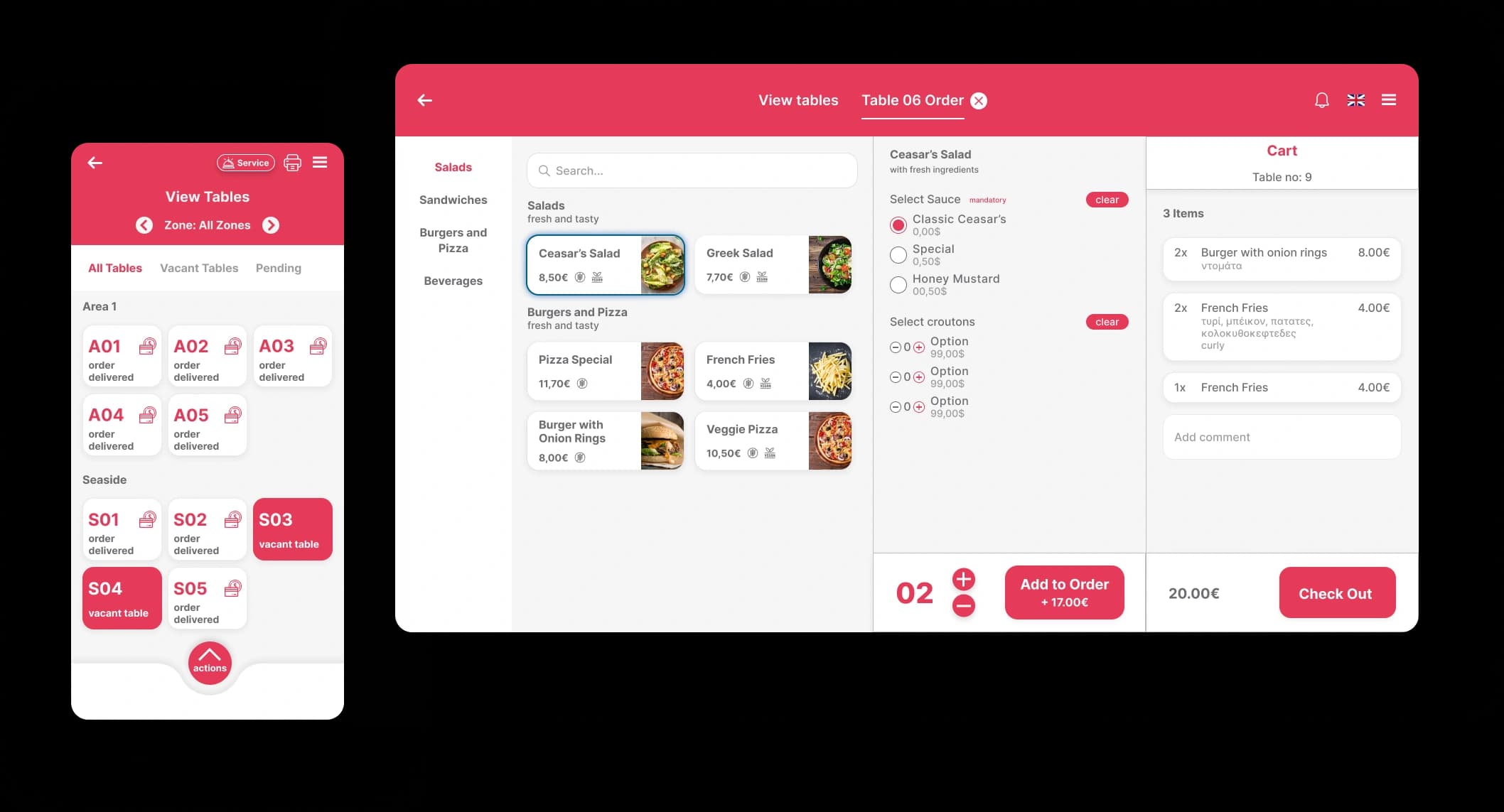
Restaurant software buying guide
How to Choose Restaurant Ordering Software in Greece
Choose around the order your team actually handles. A restaurant serving tables, phone orders and delivery needs different checks from a café taking orders only at the counter. Before signing, trace one real order from entry to preparation, payment and reporting.
What you are buying
Restaurant ordering software records items and instructions and routes them into the service workflow. A digital menu, a card-payment terminal and a fiscal receipt system serve different functions. Ask which parts are included, which need a connection and who sets each one up for your business.
Step 1
Map a busy service before choosing features
Write down where orders enter and who handles them next. Use that list to decide what the first installation must cover; optional modules can wait.
- For table service, test table selection, an extra round of drinks and a change to an order that has already been sent.
- For takeaway and delivery, check pickup details, delivery addresses and how staff distinguish those orders from the dining room.
- If you need QR ordering or a kiosk, test the customer journey as well as the staff screen. A browsable menu alone does not submit an order.
Step 2
Follow the ticket through the kitchen
A clear ordering screen is only one part of service. The kitchen and bar need the right instructions, and the person taking the order needs to know what happened to it.
- Use your own menu item with an extra and a removal. Check that both instructions arrive clearly on the intended screen or printer.
- Ask how staff see pending and completed work, and how a cancellation is communicated after preparation has begun.
- Request a demonstration with two staff devices working at the same time, including who may change or cancel an order.
Step 3
Check connections and equipment by name
Bring a list of your existing devices, payment setup and order channels. A general promise of integration is not enough to plan an installation.
- Confirm the exact device models, operating systems, kitchen printers and network requirements. Ask what must be replaced and who installs it.
- For each order channel, ask which data moves in each direction, whether the connection is available for your account and whether there is an extra charge.
- Keep card payments and receipt issuance as separate checks. Confirm the proposed setup with the relevant provider and your accountant; ordering software alone does not establish compliance.
Step 4
Ask what happens when service breaks
The useful support question is what your team should do during a busy shift. Get the recovery steps and the contact route before the first live order.
- Ask the provider to explain what stops working if the internet, a tablet or a printer fails. Do not assume offline ordering is included.
- Check how staff confirm whether an order was received before sending it again, so recovery does not create a duplicate ticket.
- Ask for support hours, available languages, the urgent contact route and any response commitments in writing, including weekends and seasonal peaks.
Step 5
Compare the full quote and the exit plan
A monthly subscription does not describe the whole purchase. Ask for a written quote for your actual service modes, staff and equipment, plus the conditions for changing or ending the service.
- Separate subscription, hardware, installation, menu import, training, integrations and any transaction charges. Clarify taxes, renewal terms and seasonal closure.
- Ask who imports products, modifiers and prices, how the result is checked, and who trains the person responsible for the next menu change.
- Request the available export formats, which records can be exported, any export fees and the data access period after cancellation.
Step 6
Decide after a demo of your own shift
Bring a small sample menu and the people who will use the system. Record any unanswered requirement before agreeing on a rollout date.
- Enter an order, change one item, send it to preparation and complete the agreed payment and receipt workflow. Check the resulting report.
- Let a staff member repeat the process without a guided sales presentation. Note where they need help or cannot recover a mistake.
- Agree on the menu check, training, launch support and fallback procedure. Set a first review around observable issues such as missed instructions or duplicate orders.
A demo scenario to bring with you
At one table, order a coffee and a sandwich with no onion and extra cheese. Add a second drink after sending the food, then correct an item. At the same time, enter a takeaway order. Check where each ticket appears, which changes the kitchen sees and how staff complete each order. These are test requirements, not a promise that every system supports every step.
FAQ
Frequently asked questions
Is a digital menu enough to take orders?
A digital menu can simply display products. If guests must submit an order, check that ordering is enabled and demonstrate how the order reaches staff and the kitchen.
Does ordering software replace a card terminal?
Order entry and card acceptance are different functions. Ask which payment equipment and provider the proposed installation uses, and how payment status is recorded against the order.
Can I keep my current devices?
Confirm compatibility using the exact models and operating system versions. Include printers and the network in the check, and request a list of any equipment you need to buy.
Where does Quickord fit in this evaluation?
Quickord offers restaurant ordering tools for dine-in, takeaway and delivery, alongside digital menus, QR ordering and self-ordering kiosks. Use the linked product pages to identify the relevant tools, then confirm the modules, equipment and connections included in your proposed setup during a demo.
Test Quickord with your menu and service workflow
Book a demo with your menu, devices and order channels. Ask for a proposal that identifies the modules, setup work and support your business needs.
Book a Quickord demo